Design freely with the Brush Tool
Our fluid and customizable Brush Tool allows designers to effortlessly paint with vectors.

Paint dynamic vector paths
Our touch-sensitive Brush Tool allows you to draw freeform paths with variable widths, providing endless creativity in every stroke. Choose from our collection of preset brushes or create your own customized vector brushes.
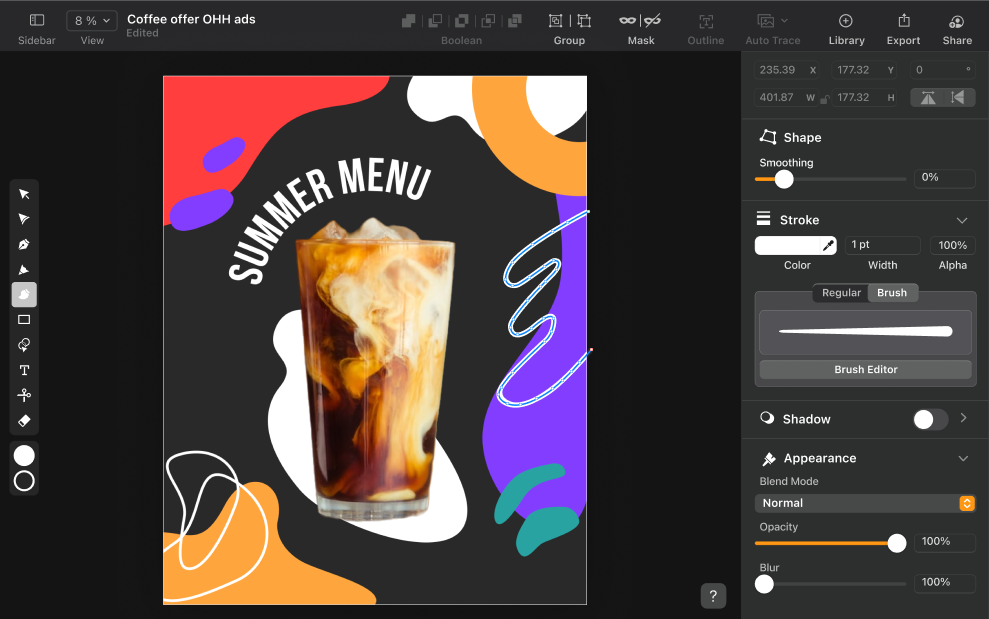
Draw first, adjust later
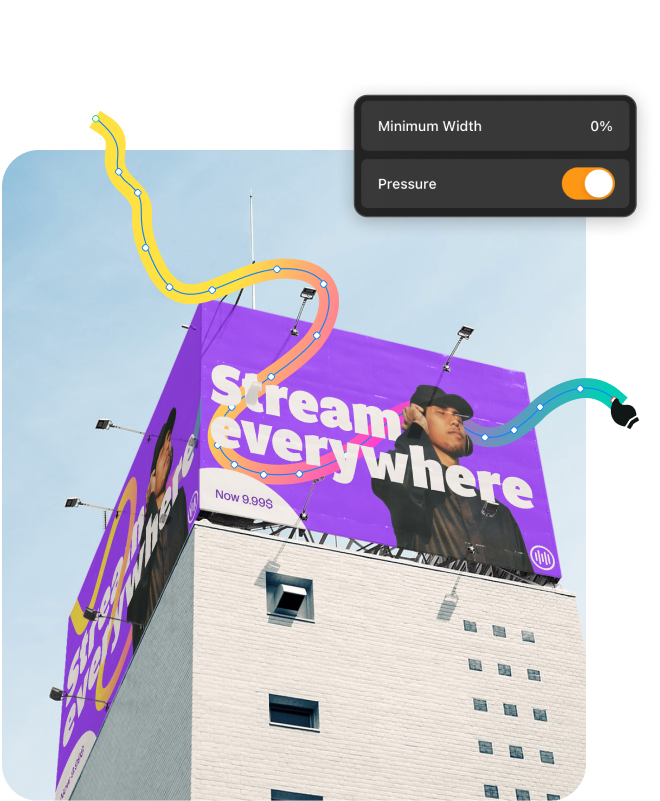
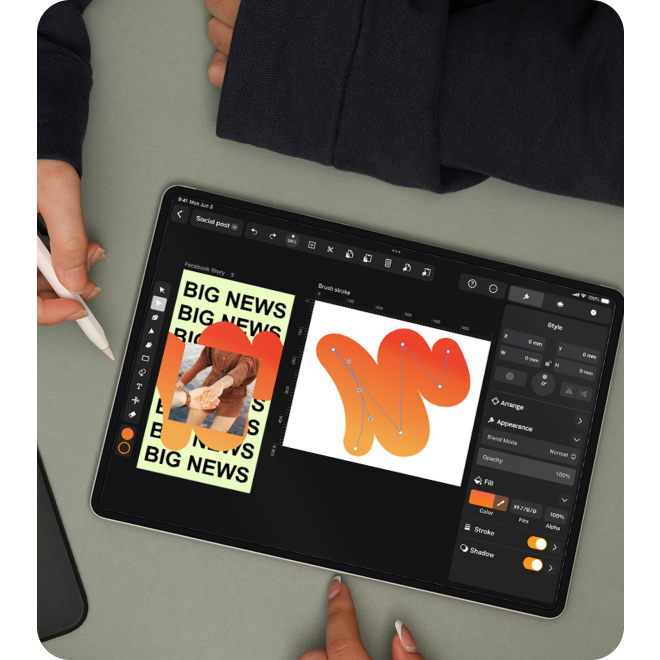
Drawing with the pressure-sensitive Brush Tool in Linearity Curve feels just like using a real paintbrush on paper.
If the smoothness value is set at 0%, the path will follow the free-flowing movement of your hand, and if the value is higher, it will smooth your brush curves and simplify the path.
Jumpstart your design workflow
Are you ready to explore Linearity Curve’s powerful tools and features?
Explore other Linearity Curve tools
Linearity Curve’s powerful suite of tools is ideal for marketing design. You can create user interfaces, social media posts, logos, lettering, and print designs, all in the same tool. Then bring your designs to life by animating them in Linearity Move.
:quality(75))
:quality(75))
:quality(75))
:quality(75))
Frequently-asked questions
Our fluid Brush Tool allows you to paint with vector shapes. The Brush Tool lets you easily draw freeform paths with variable widths.
Every brush path acts just like any other in Linearity Curve, meaning you can edit its shape by adjusting the nodes or changing its profile. Curve comes with a collection of preset brushes, but you can also create your own.
Yes. You can choose to switch on pressure sensitivity. To enable this feature, switch on the Pressure toggle inside the Brush Editor. This will cause your brush to follow the pressure of your Pencil .
Linearity Curve offers an extensive selection of brushes, and it also empowers you to design your very own. With the Brush Editor, you have limitless creative possibilities to craft custom digital painting tools that suit your unique style. Once you've fine-tuned your settings to perfection, simply save your personalized brush, and it will be seamlessly integrated into your library, ready to use whenever inspiration strikes.
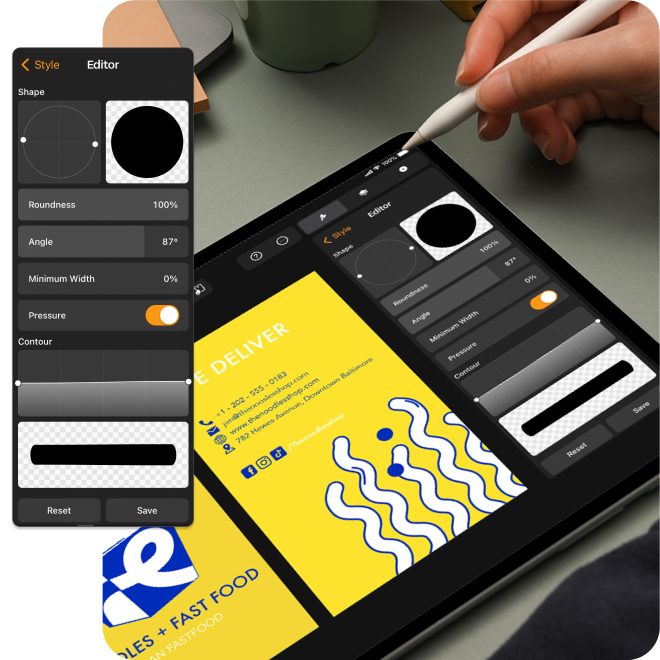
At the bottom of the Editor you'll find the Contour window: a path which represents the Brush Profile. The draggable handles form the contour of the brush, and they can be moved along the X and Y axis to reshape the brush's contour.
You can interact with the Brush Contour by adding new handles, holding and draging an existing handle to change its position, or deleting handles.
The handles selected appear in blue color and as soon as you move, add or delete them, you’ll see the changes in the preview below.
To draw a brush stroke, simply tap the Brush icon in the Toolbar to select it, or press B on the keyboard.
Once you select the Brush Tool, the Brush Options (1) will appear below the Stroke section in the Style Tab. You can use these settings to create new brushes, use Preset Brushes (2), and change the Brush Profile (3).
You can also turn any path into a brushstroke. Simply select your path and tap on the "Brush" button inside the Style Tab.
At the top of the Brush Editor, you'll see a preview (1) of your brush's shape (viewed along the Z-axis) based on the settings as Roundness and Angle.
The Roundness of your brush's stroke can be changed by dragging the handles towards the center of the circle in the Preview, using the Roundness slider (A), or tapping the slider to manually enter a value
The values range from 100% (which represents a perfect circle) to 1% (which is a flat line).
The Angle defines the rotation of the brush stroke. You can define any value within 360˚using the slider (B). A rotation of 0˚ will create a horizontal brush, and 90˚ will create a vertical brush.
The Brush tool and the Pencil tool differ in their stroke characteristics and intended use.
The Brush tool provides an organic, freehand feel, simulating painting on a canvas and offering variable thickness and textures. It is suitable for digital painting, artistic effects, and fluid illustrations. On the other hand, the Pencil tool produces precise, hard-edged lines with a consistent thickness, similar to drawing with a physical pencil on paper. It is ideal for technical drawings, clean outlines, and situations requiring accuracy and control.
The Brush tool is preferred for expressive and artistic work, while the Pencil tool excels in creating exact and defined lines.
Linearity Community Gallery


:quality(75))