Harness the power of the Pen Tool
This powerful and efficient tool allows you to define precise vector points and create custom paths using Bézier curves.
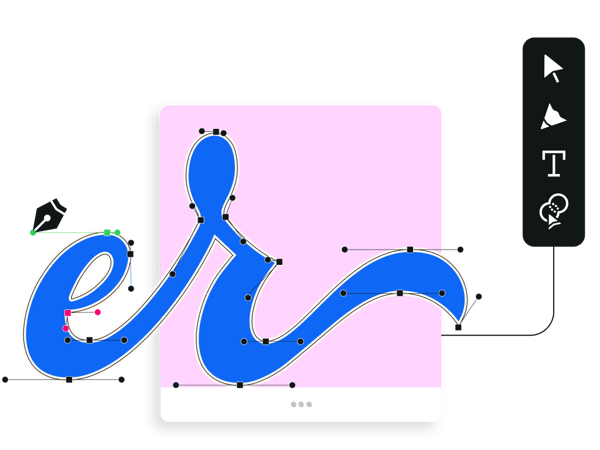
Craft your vision with precision
Linearity Curve's powerful Pen Tool is a toolbox staple for every vector designer. It helps you quickly plot Bézier curves—also known as vector paths—that you can curve, edit, and close. With its precise control and accuracy, you can confidently create custom typefaces, logos, illustrations, and more.
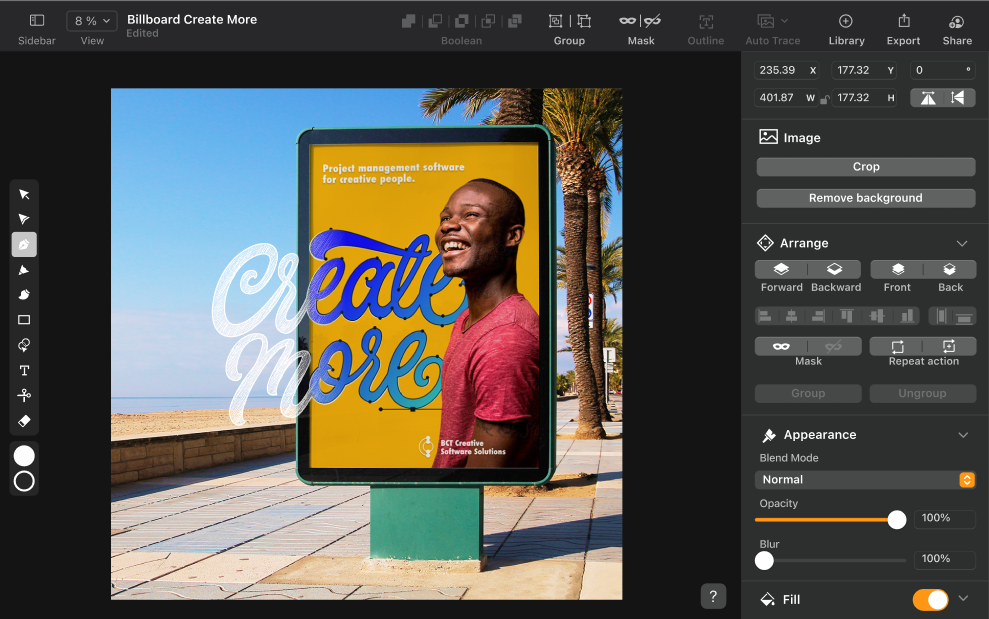
Turn your concepts into assets with the Pen Tool

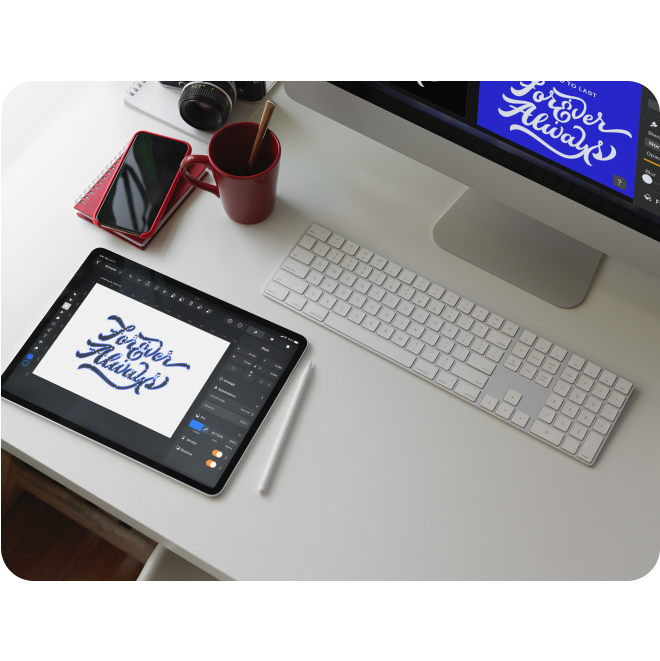
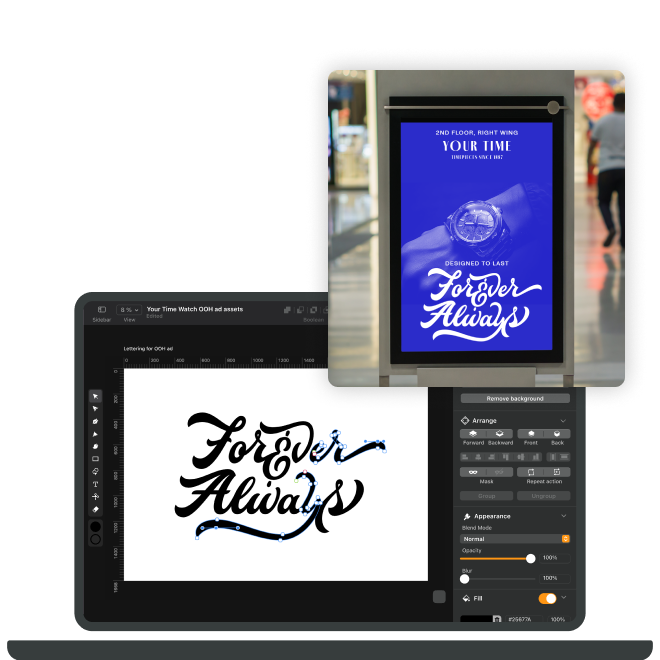
Many design journeys start with a pencil and a sketchbook. Once you've got your design down on paper, our built-in Camera Scanner helps you capture and import it into Linearity Curve without the need for those big, old-fashioned scanners.
Jumpstart your design workflow
Ready to explore Linearity Curve’s powerful tools and features?
What sets the Pen Tool in Linearity Curve apart from other tools?
Creating vector illustrations needs precision, and the Pen Tool in Linearity Curve is the perfect tool.
While the Pen Tool might seem tricky at first compared to the Brush Tool, don’t worry—Linearity Curve has made it much simpler. It's fast, intuitive, and works seamlessly with gestures on the iPad and Apple Pencil. So, you can create detailed vector illustrations and more with ease.
Features | other tools | |
|---|---|---|
Precision control | ||
Content-aware options to guide you | ||
Custom-made gestures to speed up your design flow |
1 Million+ high-resolution, royalty-free images
Choose from a library of free photos to use in your designs.
4,000+ design templates
Launch your ideas faster with free, ready-to-use templates.
80k+ royalty-free icons
Drop these vector elements straight into your document.
Master the Pen Tool
Learn how to use the Pen Tool with these essential tips.

Linearity Curve features at a glance
Linearity powerful suite of tools is ideal for designers of all levels.
AI Backgrounds
Integrate custom, AI-generated backgrounds into your existing photos.
Background Removal
Remove photo backgrounds with the tap of a button.
Pen Tool
Define precise vector points and create custom paths with Bèzier curves.
Brush Tool
Freely draw editable vector paths.
Shape Builder
Quickly sculpt complex designs from multiple shapes
Auto Trace
Instantly turn your raster images into vectors
:quality(75))
:quality(75))
:quality(75))
:quality(75))
Frequently-asked questions
The Pen Tools in Adobe Photoshop, Adobe Illustrator, and Linearity Curve (formerly Vectornator) allow you to draw paths, but there are some subtle differences in how they work.
Unlike Adobe Illustrator and Linearity Curve, Photoshop is a raster-based image editing software. The pen can be used to draw fixed pixel-based shapes, a bèzier path, or a bèzier path-based shape.
In Illustrator, the Pen Tool is used to draw vector paths that can be scaled to any size. Any path can also be edited after it's drawn to take on the qualities of a different brush stroke or effect.
Linearity Curve's Pen Tool is also vector-based and allows you to create custom paths with bèzier curves. Like in Illustrator, any path you draw in Curve using the Pen Tool can be edited. However, we designed our Pen Tool to feel more intuitive, especially when it comes to using an iPad and Apple Pencil. Find out more about our amazing Pen Tool in our user Guide.
A Pen Tool is a graphic tool that allows you to create precise paths with mathematical points.
In Linearity Curve (formerly Vectornator), you can draw straight lines by plotting points or curved segments by tapping and holding to bend the line you just made. You can then create a closed path by joining the first and last anchor points.
Learn more Pen Tool tips and tricks in our User Guide.
Although it's called the Pen Tool, this digital tool is not used like a regular pen.
In the past, it's been called the Bèzier Tool, named after Pierre Bèzier, the person who invented it. It has also been known as the Path Tool, since you can use it to draw a vector path line.
Today, the Pen Tool is perhaps the most powerful and important digital tool for designers out there. Most graphic designers, illustrators, and creatives need and use it every day, which is perhaps the reason it's named after such a common and useful object.
To activate the Pen Tool in Linearity Curve, simply tap/or click the Pen icon in the Toolbar or press the
Digital vector artists can use the Pen Tool, the Brush Tool, the Pencil Tool, and even the Shape Tool to draw. There are many powerful tools and techniques for drawing digitally, but plotting out points with the Pen Tool is the most precise way to create an accurate line or a smooth curve segment.
Linearity Curve users on desktop can use their trackpad or mouse button to click to add anchor points. And if you're using the iPad or drawing tablet, just tap with your stylus to add points as you draw. You path's direction and angle is determined by the position of the node handles.
In graphic design, a path is a line that appears when you draw using a vector tool as the Pen , the Pencil , or the Brush Tool. It is made up of a series of anchor points (or nodes).
There are mostly three types of paths:
- Open path: A single path (or line) with two end anchor points.
- Closed path: A closed shape that has no end point.
- Compound path: Two or more open or closed paths connected with each other.
:quality(75))