Use Case
Personalize your designs with unique lettering
With Linearity's tools, you have everything you need for crafting typography that grabs attention.
Free to start. No credit card required.
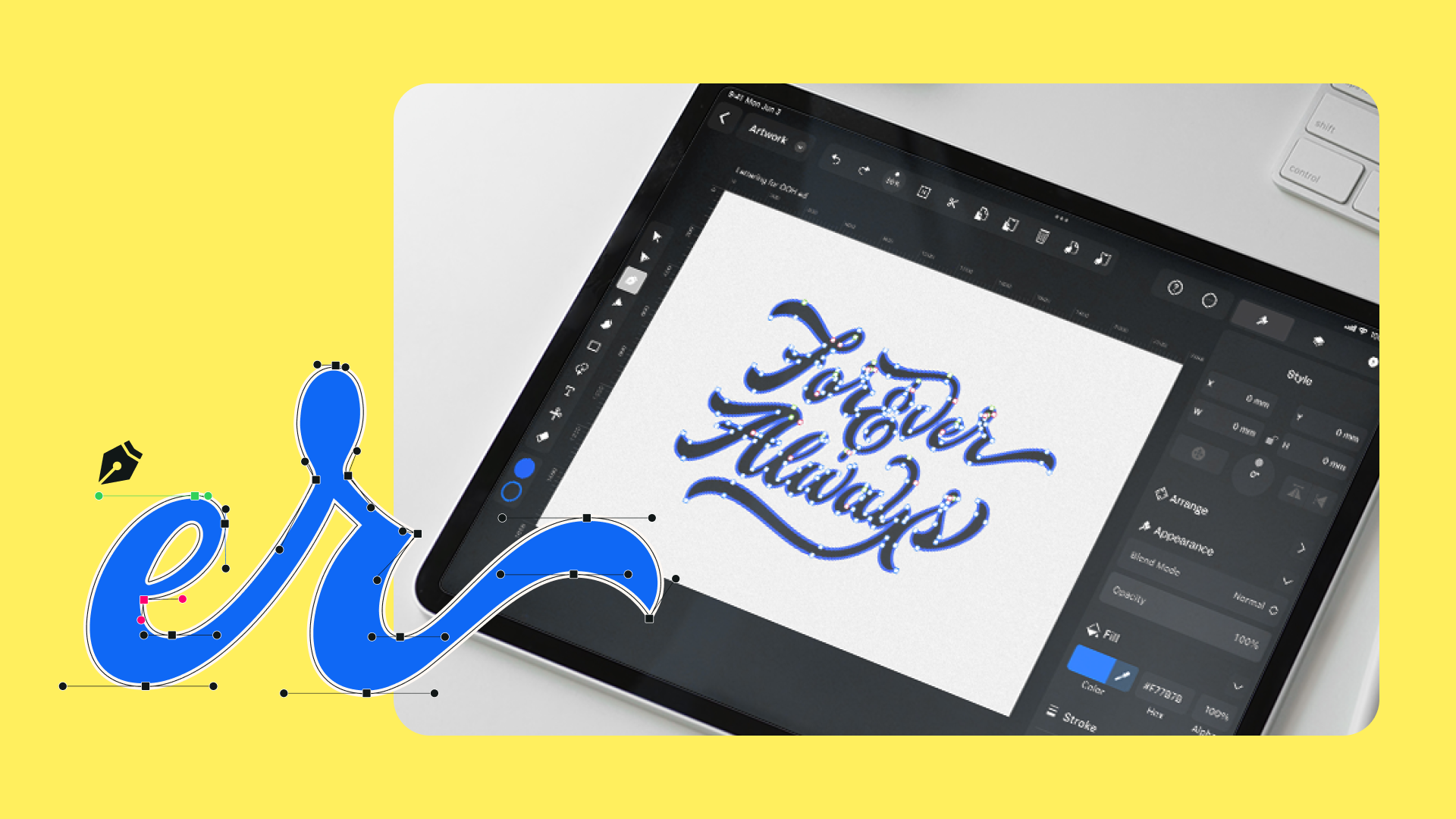
The art of lettering
Hand lettering, a timeless art with historical roots, is experiencing a significant revival in the digital era. It's a go-to for creative marketing campaigns, empowering brands to blend vintage charm with a contemporary twist to express their unique stories.
Refining your digital lettering skills starts with pen and paper. Try out different lettering styles, focus on making it legible, and don't forget to practice, practice, practice. Once you've got something cool in your sketchbook, it’s time to bring your lettering into the digital realm. That's where Linearity Curve comes in!

Let’s get digital
For digitizing your hand-lettering and calligraphy, you need design software that’s streamlined, organic, and precise. Linearity Curve is the perfect tool for the job, offering a powerful Auto Trace feature and a user-friendly Pen Tool for effortlessly converting your lettering into vectors.
Having a Linearity Cloud account gives you ultimate flexibility, letting you craft scalable lettering designs seamlessly on Mac, iPad, or iPhone. All your work is automatically synced and secure.
- Turn sketches into vectors in a tap with Auto Trace.
- Create complex and detailed lettering paths with the Pen Tool.
How to vectorize your lettering
Crafting hand-lettering on paper is an imaginative art form. Dive into a world of possibilities, play around with different styles, and let your creativity take the lead.
After perfecting your design on paper, dive into the digital realm with Linearity Curve. Simply import your sketch using your device's camera from the Import Tab. Hit Camera, snap the shot, and boom—your sketch is ready for vectorization.


Store your script
The Assets Tab in Linearity Curve is your personal design vault right within the app. It’s where you can save anything you create on your canvas for later.
This handy feature lets you store your finished lettering designs with just a tap, offering a smooth and efficient way to access and incorporate them into your future designs.
To kick off your collection, head over to the Library Tab in the Inspector, where you'll find your Assets Tab.

Animate your lettering
Learn to import curves, create twinkling star effects with keyframes, and master dynamic lettering animations.
Learn more in our Tutorials
25 inspiring anime quotes: Updated!
Japanese animation covers complex subjects catered to many demographics. We share our list of thought-provoking and relatable anime quotes.Read more
Explore other use cases

Design and animate on iPad with the LAMY Safari note+.

Design a billboard with Linearity Curve

Make your own logo design with Linearity

Create branded communication posts with Linearity

Animate your presentations

Motion graphics in-house with Linearity Move | Linearity

Design the Best Social Media Posts | Linearity

How to animate any illustration?

App Store assets that convert and App mockup

Linearity Design Suite: Affordable Adobe Illustrator Alternative for Creatives

Make every marketing asset count

Upgrade your Brand with Linearity

Digital Illustration with Linearity Curve

Make a Logo that Counts

Linearity | Design & animate digital ads with ease

Marketing templates for scaleable asset creation
Make every marketing asset count
Make every marketing asset count
Make every marketing asset count

Design a unique business card with Curve
Frequently asked questions
Have more questions? Visit our FAQs page.
What is the Pen Tool?
A Pen Tool is a graphic tool that allows you to create precise paths with mathematical points.
In Linearity Curve (formerly Vectornator), you can draw straight lines by plotting points or curved segments by tapping and holding to bend the line you just made. You can then create a closed path by joining the first and last anchor points.
Learn more Pen Tool tips and tricks in our User Guide.
How do I Auto Trace an image?
It's super easy. Simply import and select the sketch or photo you want to image trace and select Auto Trace in the Quick Actions tab. Our software will automatically analyze your input image and decide between "Sketch" or "Picture" in the "Type" picker section of the Inspector. Next, our tracing options allow you to adjust the complexity and contrast settings to get the perfect level of detail in your digital artwork. Finally, hit the Auto Trace button and watch your raster graphics turn into high-resolution images within seconds! Once complete, you can use the additional options and tools in Curve to refine your design.
What is the difference between the Pen tools in Photoshop, Illustrator, and Linearity Curve?
The Pen Tools in Adobe Photoshop, Adobe Illustrator, and Linearity Curve (formerly Vectornator) allow you to draw paths, but there are some subtle differences in how they work.
Unlike Adobe Illustrator and Linearity Curve, Photoshop is a raster-based image editing software. The pen can be used to draw fixed pixel-based shapes, a bèzier path, or a bèzier path-based shape.
In Illustrator, the Pen Tool is used to draw vector paths that can be scaled to any size. Any path can also be edited after it's drawn to take on the qualities of a different brush stroke or effect.
Linearity Curve's Pen Tool is also vector-based and allows you to create custom paths with bèzier curves. Like in Illustrator, any path you draw in Curve using the Pen Tool can be edited. However, we designed our Pen Tool to feel more intuitive, especially when it comes to using an iPad and Apple Pencil. Find out more about our amazing Pen Tool in our user Guide.
How do I get good at creating cool lettering?
You don't need to be a type designer to achieve beautiful lettering. Anyone can develop a unique and beautiful hand-lettering style with practice. Start with the basics and explore various styles in your sketchbook. Invest in quality materials, seek inspiration from experienced artists, and embrace constructive feedback. Set achievable goals, utilize online tutorials, and view mistakes as learning opportunities.
What are the different styles of lettering?
The world of lettering encompasses a rich variety of styles, ranging from classic script, serif, and sans-serif. Additionally, specific styles such as bold lettering and decorative lettering bring unique attributes to typography. Whether conveying strength with bold lettering or adding ornate elements in decorative styles, the exploration of these diverse lettering styles enables designers to craft their distinctive visual language.