Design and animate – all in one place.
Skip software switching and achieve efficient scene editing in Design mode while seamlessly recording object changes in Animate mode.
Harnessing the power of Linearity Move's different modes
Maximize your creativity with the graphic-designer-friendly features in Design mode, then use those assets for intuitive scene editing and smooth animation creation in Animate mode.
Respond to feedback and make changes with Design mode
Ever wondered how you can change the color of one single object in just one move after that you finalized your animation? Well, that’s where Design mode comes in.
Design mode is a feature in Linearity Move that allows you to edit scene assets without affecting animations, making changes only to an object's appearance. You can also create new assets from scratch in this mode, without much effort.
Customize animated templates
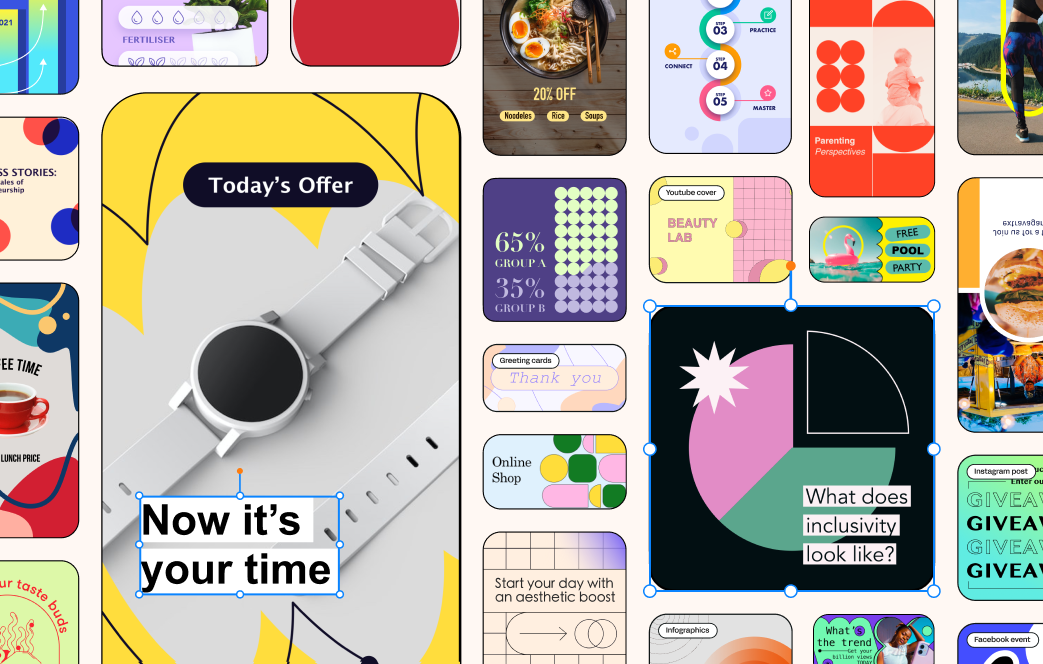
Begin by downloading the Gallery Chroma animated template and take a sneak peek at the animation in Animate mode.
Get a feel for how it looks in its original state.
Animate on auto-pilot
Animate mode is where you change object values to create animations.
For example, you can adjust an object's opacity to make it fade out of the screen. Animate mode records these changes as keyframes on a timeline, which, when played back, smoothly transitions between different states of the object.
“Very intuitive, feels and looks like Keynote on steroids.”

andhuman Marketing Agency Owner
Switch modes, not software
Follow our step-by-step guide on how to seamlessly switch between Design and Animate mode within Linearity Move, eliminating the need to toggle between multiple software programs.
Let your animation adventure begin





Explore Linearity Move
Linearity Move's powerful suite of tools is ideal for animation design. You can create promotional videos, dynamic text animations, and professional logo animations with ease.
Want to know more about Linearity Move?
Design Mode and Animate Mode in Linearity Move allows users to toggle between creating individual keyframes for frame-by-frame animation and using motion tweens for fluid movements in complex animations.
Absolutely. Design Mode offers the flexibility to craft detailed animations using individual keyframes for those who prefer a traditional frame-by-frame approach.
Linearity Move distinguishes itself from other animation tools through its emphasis on empowering both entry-level animators and seasoned professionals to create amazing animations with ease. The software's modern animation features enable users to produce smooth movements and captivating motion graphics effortlessly.
Linearity Move stands out for its user-friendly interface, making it accessible for beginners while catering to the diverse needs of animation clients. Its advanced capabilities provide a seamless platform for animated projects, setting it apart in the realm of animation software. Whether you're a novice or an expert, Linearity Move delivers a unique blend of simplicity and sophistication to elevate your animation experience and bring your creative vision to life.
Tweening, short for "in-betweening," is a vital aspect of frame animation techniques, especially in digital animation. Originating from the need to streamline the animation process, it involves creating intermediate frames between keyframes, ensuring smooth transitions. Key animators define essential frames, and the tweening process generates intervening frames, automating the transition for a fluid animation. This technique significantly enhances efficiency and precision in digital animation, allowing for intricate and seamless motion.
Tweening is particularly advantageous for modern animators and animation studios, it eliminates the need to manually draw single frames between keyframes in hand-drawn animations. This efficiency enhances the overall speed and precision of the animation process, enabling the creation of intricate and dynamic sequences. Moreover, tweening is crucial in interactive animations, providing a seamless experience for users. This streamlined type of animation has become a cornerstone in the animation industry, revolutionizing the way animations are produced and contributing to the evolution of digital storytelling.
Get Linearity Move now, a simple yet powerful animation tool that seamlessly integrates motion and design. No prior skills required.
:quality(75))